PeerLLM v2.6.0 Local Mode: Run AI on Your Own Machine, No Account, No Network
PeerLLM v2.6.0 opens the door to a new kind of user.
Until now, PeerLLM has been built around the idea of a network. You install the app, you connect your machine, you become a host, and you contribute compute to a decentralized AI system. That is still the heart of the project, and it always will be. But not everyone who wants to run AI wants to join a network. Some people just want to run models on their own machine. Some developers just want a local runtime they can build against. Some users just want to chat with an AI privately, on hardware they already own, without an account and without sharing anything with anyone.
PeerLLM v2.6.0 introduces Local Mode, and it is built exactly for those people.
Local Mode lets you use PeerLLM as a standalone local AI system. You do not have to become a host. You do not have to pay for a subscription. You do not have to share your resources with the network. You install the app, choose to use it locally, and everything runs on your machine, for your own needs, whether that is chatting with a model or building AI-powered software against a local endpoint.
0/ What Local Mode Is
Local Mode is a first-class way to run PeerLLM with the network turned off.
When you enter Local Mode, PeerLLM does not sign you in, does not register a host, does not ask for a subscription, and never starts the connection to the orchestrator. There is no account. There is no network handshake. There is nothing being reported anywhere. The app becomes a clean, self-contained local model runner that lives entirely on your machine.
This matters because “local AI” and “decentralized AI” are two different needs, and PeerLLM should serve both honestly. A host who contributes compute to the network is doing something generous and valuable, and the network rewards that. But a person who just wants a private, offline-friendly AI runtime on their own laptop should not have to sign up, opt into hosting, or share their machine to get it. Local Mode removes every one of those requirements.
1/ Turning It On
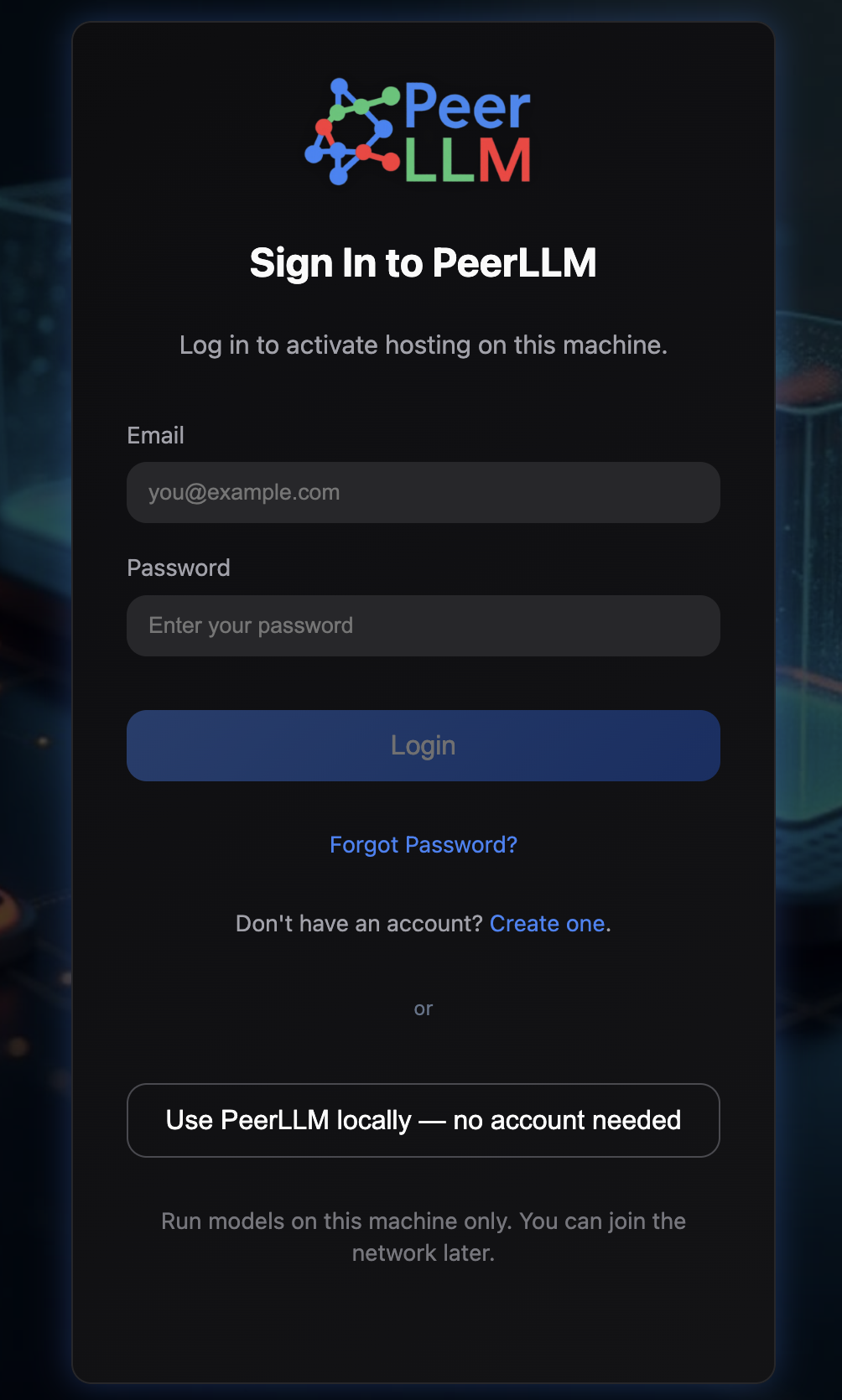
Local Mode is a single choice on the sign-in screen.
Under the normal sign-in options, there is now a clear alternative labelled “Use PeerLLM locally” (no account needed). Choosing it takes you straight to the dashboard. No login, no host registration, no subscription flow, and no agreement gate stands between you and running a model. The choice is remembered, so the next time you open the app it comes back up in Local Mode automatically.
Behind the scenes, this is enforced at more than one layer. A local-only flag is persisted in your configuration, the normal authentication, registration, and subscription guards are bypassed, and there is a defense-in-depth guard that prevents the orchestrator connection from ever being started while you are in Local Mode. The network is not merely hidden in the interface; it is genuinely not running.
2/ Everything Local Stays
Local Mode is not a stripped-down demo. It keeps every feature of PeerLLM that runs on your own machine.
- LLM Chat. You can chat with any model you have loaded, exactly as you would in the full app.
- Model management. You can browse, download, load, and unload models. The whole local model library is available to you.
- The local REST API server. The on-device server keeps running, so anything you or your tools point at it keeps working.
- Live performance. The dashboard still shows real-time CPU, GPU, and memory usage for the work happening on your machine.
- Logs. Full local logging stays available so you can see exactly what the app is doing.
The only things that go away are the things that only make sense on the network: hosting, earnings, and network traffic. In Local Mode, the app skips the network payout fetch entirely and simply reports on what your own machine is doing.
3/ A Dashboard Built for Local Use
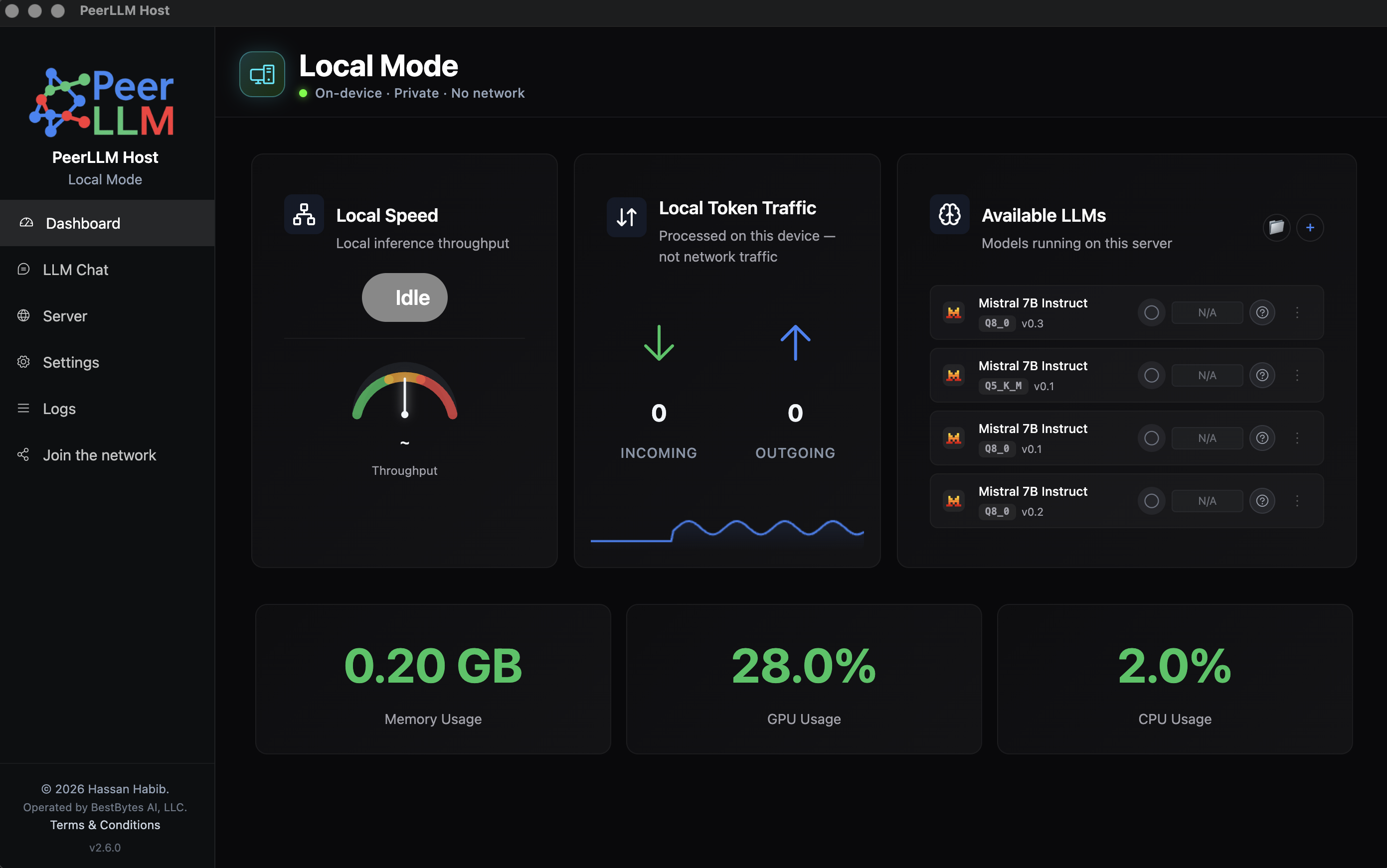
The dashboard is repurposed for a local audience instead of a hosting audience.
The header says it plainly: Local Mode, with a status line reading On-device · Private · No network. From there down, the screen shows what actually matters when you are running models yourself. There is a Local Speed gauge that reports your on-device generation speed in tokens per second, and a Local Token Traffic tile that counts only the tokens produced by inference on your machine, clearly labelled Processed on this device, not network traffic, because in Local Mode there is no network traffic to report. Alongside them, the Available LLMs panel lists the models running on this server and lets you add more, so managing your local library never leaves the dashboard.
Below the fold, three expanded performance cards give real-time Memory, GPU, and CPU usage room to breathe, the network and earnings surfaces are hidden, and a header emblem makes it obvious at a glance that you are running locally. The whole screen is oriented around one question: how is my machine doing while it runs AI for me?
4/ For AI Developers
Local Mode is also a serious tool for people building AI software.
Because the local REST API server stays fully available, PeerLLM in Local Mode becomes a local model endpoint you can build against. You can point your own application, agent, script, or experiment at the local server and develop against a real model running on your own hardware, without an account, without network latency, and without sending your prompts anywhere.
For a developer, that is a meaningful thing to have. You get a private, self-contained runtime for testing prompts, wiring up tools, prototyping agents, and iterating on AI features. Nothing leaves the machine, there is no subscription meter running, and you are not dependent on anyone else’s infrastructure while you build. When you are ready to go beyond your own machine, the network is still there, but during development, Local Mode keeps everything close, fast, and private.
Here is what that looks like in practice. In the demo below, I use my open-source Standard AI Agent Framework (an agent framework for C#) and point it at a local PeerLLM endpoint. The agent runs entirely against a model on my own machine: no cloud provider, no third-party account, and no data leaving the laptop. The one credential it uses is a local API key you generate right inside PeerLLM (the local REST server is key-protected even in Local Mode), so access to the endpoint stays under your control while everything runs on your own hardware. It is a concrete example of the workflow this section describes, and it shows how naturally Local Mode slots into real AI development.
The Standard AI Agent Framework is open source, so if you build in C# you can try the same setup yourself. It really is this little code. Here is the framework’s own quick-start, a complete agent in two lines:
var agent = new StandardAgent(
    apiUrl: "https://api.peerllm.com/v1/",
    apiKey: key,
    model: "LLooMA2.0");

string answer = await agent.ProcessPromptAsync("What is 47 * 89?");
To run the exact same thing against Local Mode, point apiUrl at your local PeerLLM server and use the API key you generated in PeerLLM:
var agent = new StandardAgent(
    apiUrl: "http://localhost:3000/v1/",   // your local PeerLLM server
    apiKey: key,                           // the key you generated in PeerLLM
    model: "your-local-model");            // whatever you loaded (see /v1/models)

string answer = await agent.ProcessPromptAsync("What is 47 * 89?");
Same code, private endpoint. The model runs on your own machine and the request never leaves it.
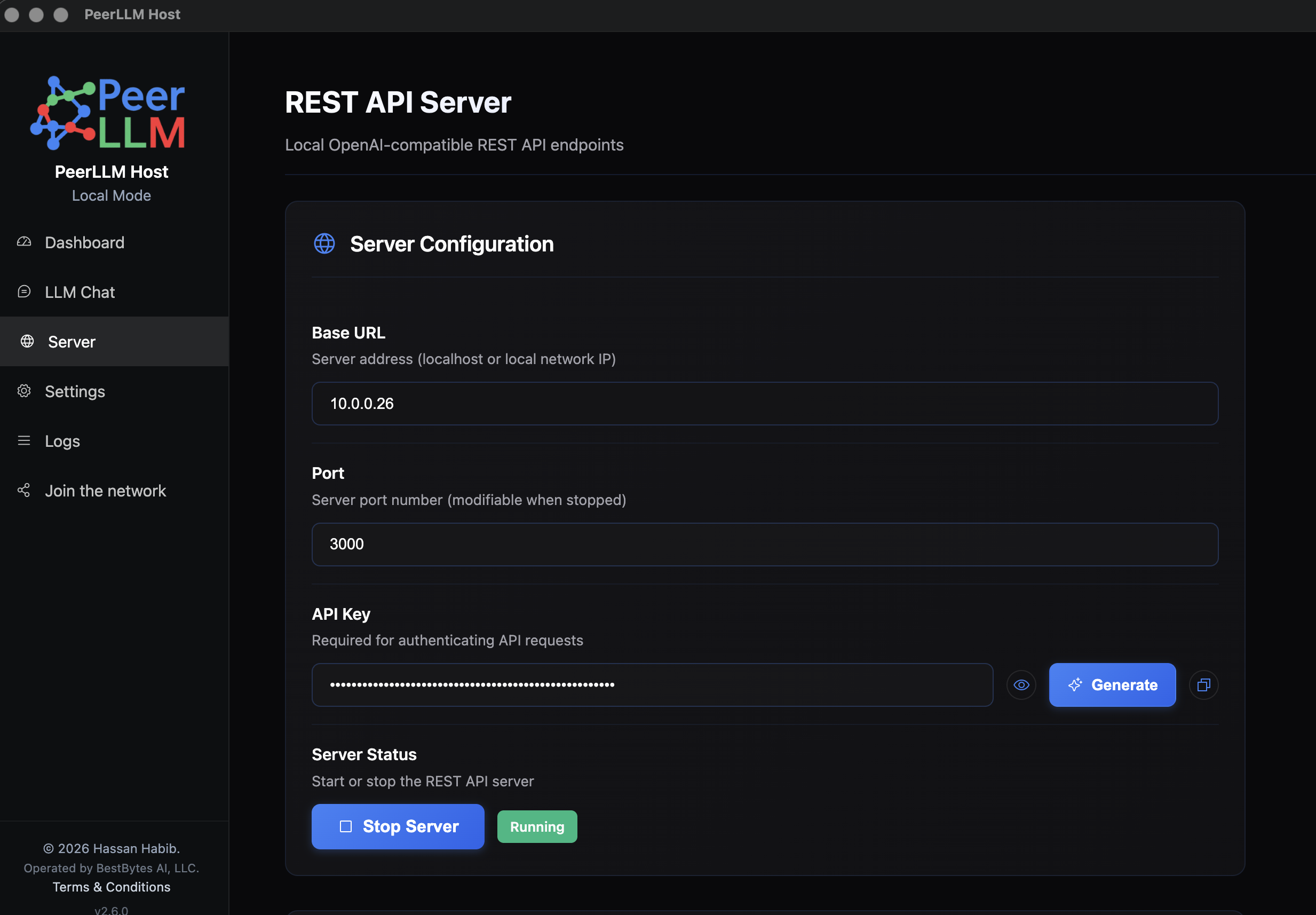
Both the endpoint and the key come from the Server page in PeerLLM. There you set the Base URL and Port, click Generate to mint an API key, and start the local REST server. Those are the exact values you drop into the code above.
5/ Local Mode on the Command Line
Local Mode is not only a desktop feature. The PeerLLM Host CLI v2.6.0 supports it too, which makes it a natural fit for servers, containers, headless Linux machines, and developer workflows where a graphical interface is not wanted.
If you do not already have the CLI, install it with:
npm i -g peerllm-host-cli
To start PeerLLM as a standalone local LLM runner, just add offline:
peerllm-host start offline
That single word changes everything about how the daemon behaves. It skips login, registration, and subscription entirely, and it never connects to the network. There is also a flag form if you prefer it, and you can run it as a background daemon:
peerllm-host start --offline
peerllm-host start offline --detach
You can confirm the mode at any time with:
peerllm-host status
In Local Mode, the status output reports the daemon as running in Local Mode, a standalone local LLM runner with no account or network, so there is never any doubt about what the machine is doing. If you want to switch an already-running host into local operation, peerllm-host restart offline does the same thing for a restart.
This is what makes Local Mode genuinely useful for AI developers. You can bring up a private local model endpoint on a server or inside a container with one command, point your application at it, and build. No account, no network, nothing shared.
6/ Join the Network Whenever You Want
Choosing Local Mode is not a dead end.
If you start out running PeerLLM just for yourself and later decide you want to contribute compute, earn rewards, and become part of the decentralized network, you can. The dashboard includes a “Join the network” action that lets a local user opt into hosting at any time. Nothing about starting local locks you out of the network later. You can begin as a private local user and become a host the moment it makes sense for you.
This is the relationship PeerLLM should have with its users. It should meet you where you are. If all you want is local AI, that is completely valid, and the app should serve you well. If you decide you want to be part of something larger, the path is one click away.
Also in This Release: A Reliability Fix for Hosts
While Local Mode is the headline of v2.6.0, this release also fixes an important reliability problem for hosts on the network.
A host whose connection to the orchestrator got stuck mid-reconnect could quietly drop off the network and never come back, with no crash, no error, and a process that still looked perfectly healthy on the machine. In one case a host stayed invisible to the network for over ten hours. The old reconnect logic could only recover from a connection that actually closed, and this particular failure never closed it, so the app only tended to recover when the machine woke from sleep or the screen was unlocked. An always-on host got no such nudge.
The app now watches whether its heartbeats are actually reaching the orchestrator. If none has landed for three minutes, it tears down the wedged connection and builds a fresh one, without disturbing any models it already has warm. For hosts running machines around the clock, this closes a real gap and makes staying connected far more dependable.
Why This Release Matters
PeerLLM v2.6.0 matters because it widens who PeerLLM is for.
From the beginning, PeerLLM has been about giving ordinary people a stake in AI instead of leaving intelligence, infrastructure, and value in the hands of a few centralized companies. Hosting is one powerful way to do that: contribute your machine, help serve the network, and share in what it creates. But there is another, quieter way that AI should belong to people: you should be able to run it yourself, privately, on hardware you already own, without asking anyone’s permission and without giving anything away.
Local Mode is that second path. It says you do not have to become a host to benefit from PeerLLM. You do not have to pay a subscription to run a model. You do not have to share your resources to get local AI. You can simply use it, for yourself, on your own machine, for chat or for building. And if you ever want to join the network, it will be right there waiting for you.
That is the kind of choice AI should give people. PeerLLM v2.6.0 makes it real.
Download PeerLLM today from the download section at hosts.peerllm.com.
~ Hassan