PeerLLM v2.7.0 Hybrid Mode: From Your Machine to the Network, on Your Terms
In v2.6.0, PeerLLM learned to run entirely on your own machine. Local Mode gave you a private, self-contained AI runtime: no account, no subscription, nothing shared with anyone.
v2.7.0 keeps every bit of that, and then it opens a door.
That local server you run for yourself can now reach the wider decentralized PeerLLM network — the pool of machines around the world contributing compute — for the requests your own hardware can’t handle. A model too big for your GPU, a workload you don’t want to run locally, a moment where you’d rather borrow the network’s strength: your local endpoint can now hand those off, and hand back the answer, through the same address you already point your tools at.
The important word is door. It stays shut by default. It only opens if you open it, with a key that is yours, and even when it’s open, your machine always gets the first try. This is the whole idea of PeerLLM v2.7.0: local by default, decentralized on your terms.
0/ What Hybrid Mode Is
Hybrid Mode turns your local PeerLLM server into a single front door to two worlds: the models on your own machine, and the models on the network.
Before v2.7.0, your local server (http://localhost:3000/v1) could only answer with models you had loaded locally. Ask it for something it didn’t have, and the request simply failed. With Hybrid Mode, that same endpoint can now relay a request it can’t serve on-device out to the decentralized network, get the result, and return it to you — over the exact same OpenAI-compatible API, at the exact same address. Your application doesn’t change. Your endpoint doesn’t change. What changes is how far that one endpoint can reach, and you decide how far that is.
Nothing about this is on by default. A fresh install, and every existing install, behaves exactly as before: local only, the network never touched. Hybrid Mode is a capability you deliberately switch on.
1/ Local First, Always
The most important rule in Hybrid Mode is the one that protects you: local always wins.
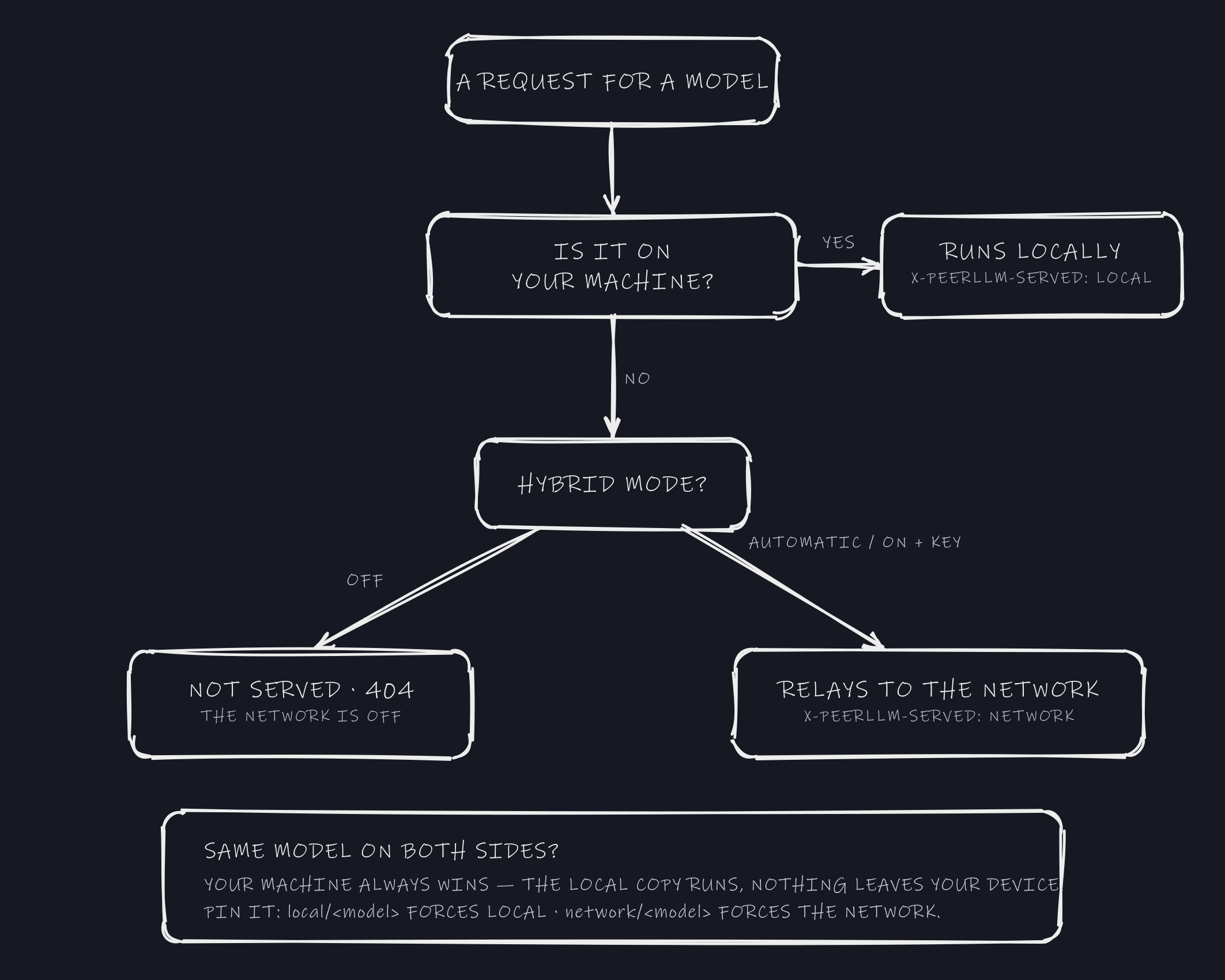
When a request comes in, PeerLLM checks your own machine first. If you have a model that can serve it, it serves it locally, full stop — the network is never consulted, and nothing about that request leaves your machine. The network is only ever reached for what your local server genuinely cannot do on its own.
This holds even when a name is ambiguous — which answers a question people ask right away: what if the exact same model exists both on my machine and on the network?
Say you have mistral-7b loaded locally, and mistral-7b also exists out on the network. You send a request for mistral-7b. It runs locally, every time. The network copy is never touched, and nothing about that request leaves your machine. Your hardware has the first and strongest claim on your work, and a name collision never changes that.
When you want the other behavior, you say so explicitly with a one-word prefix:
mistral-7b→ runs locally (the default; local wins).local/mistral-7b→ force it to your machine, even in a mode that could reach the network.network/mistral-7b→ deliberately send this one to the network copy.
So the rule is simple: local by default, network only when you ask — either by needing a model you don’t have, or by naming the network explicitly. There is no situation where turning Hybrid Mode on quietly starts sending work you could have done yourself out to other people’s machines.
Every reply also tells you where it ran. Each response carries a header — X-PeerLLM-Served: local or X-PeerLLM-Served: network — so there is never any doubt about whether a given answer came from your machine or from the network. Transparency is not an afterthought here; it’s built into every response.
2/ The Three Modes
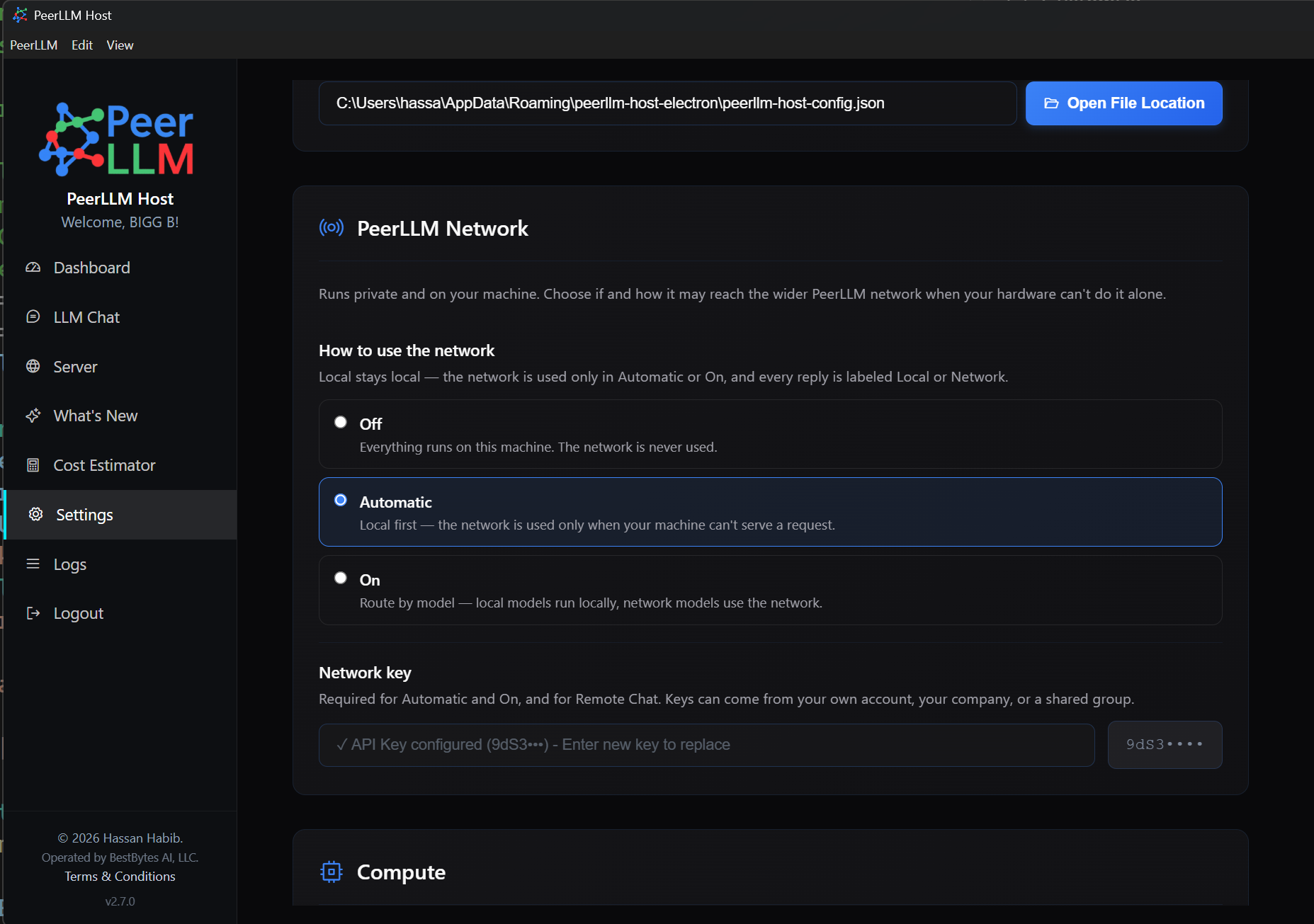
Hybrid Mode is a single, plain choice in Settings → PeerLLM Network, with three options.
- Off. Everything runs on this machine. The network is never used. This is the default, and it’s identical to how PeerLLM behaved before v2.7.0.
- Automatic. Local first — the network is used only when your machine can’t serve a request. You keep doing everything you can locally, and the network quietly fills the gaps.
- On. Route by model — local models run locally, network models use the network. This is the deterministic choice for people who want to address both worlds explicitly by model name.
The screen says it as plainly as it can: local stays local — the network is used only in Automatic or On, and every reply is labeled Local or Network. You are never guessing what the app is about to do.
3/ In Practice: A Few Ways to Run It
Hybrid Mode works the same whether you signed in as a host or you’re running with no account at all. In both cases the recipe is the same: pick a mode, and — if that mode can reach the network — bring a key. Here are the shapes it takes, on the command line (the desktop app has the identical switches in Settings → PeerLLM Network).
Fully offline — nothing shared (the default). This is v2.6.0 Local Mode with Hybrid Mode left Off. No account, no network, no key; the app never opens a connection to anything.
peerllm-host start offline      # no login, no registration, never connects to the network
peerllm-host hybrid status      # Hybrid Mode : Off — local only, the network is never used
Every request is answered by your own machine, or not at all. Out of the box, this is exactly where a fresh install sits.
Local first, borrow the network when you must (Automatic). You still run locally by default, but when a request needs more than your machine has, it quietly relays.
peerllm-host start offline
peerllm-host hybrid key <your-api-key>      # personal, company, or shared-group key
peerllm-host hybrid mode automatic
Now a model you have loaded runs locally; a model you don’t gets served by the network. You stop thinking about it — local wins whenever it can, and the network fills the gap.
Local for local, network for network (On). When you want to be explicit, On routes strictly by model name: whatever you have on-device runs on-device, and models that live only on the network go to the network.
peerllm-host hybrid mode on
This is the mode for addressing both worlds deliberately — your local models for private, fast work, and specific network models by name for everything else. And since you can always prefix a request with local/ or network/, you keep the final say per request no matter which mode you’re in.
Already a host? Same controls. If you’re signed in and contributing compute to the network, none of this changes. The local server on your machine gains the same local-first, network-when-needed behavior, driven by the same key you already have — you keep hosting for others while your own endpoint reaches further when you need it.
The through-line across all four: the default is your machine, and the network is a switch you flip, not one you have to escape.
4/ One Endpoint, Two Worlds
The elegance of Hybrid Mode is that your tools never have to know it exists.
You already point your application, agent, or script at your local PeerLLM server. With Hybrid Mode on, that same server now decides — per request, live — whether to answer locally or relay to the network, and returns the result the same way either time. No second endpoint, no separate client, no code change. Here is a request for a network model going through the local server, with the provenance header showing exactly where it was served:
$ curl -sD - http://localhost:3000/v1/chat/completions \
    -H "Authorization: Bearer $LOCAL_KEY" \
    -H "Content-Type: application/json" \
    -d '{"model":"LLooMA2.0","messages":[{"role":"user","content":"Hello"}]}'

HTTP/1.1 200 OK
X-PeerLLM-Served: network
Content-Type: application/json

{ "model": "LLooMA2.0", "choices": [ { "message": { "role": "assistant", ... } } ] }
Ask for a model you have loaded locally instead, and the very same call comes back with X-PeerLLM-Served: local and never leaves your machine. One address, and you always know which world answered.
The change takes effect immediately, too. Flip the mode or update the key, and your running server picks it up on the very next request — there is no restart, no reconnect, no interruption to whatever you’re building.
5/ Your Key, From Anywhere
Reaching the network takes a key, and that key is yours to choose.
Hybrid Mode relays through the network using a PeerLLM API key, and — importantly — it does not require you to be signed in. Local Mode never asked you to log in, and Hybrid Mode keeps that promise. The one thing you bring is a key, and that key can come from anywhere it makes sense for you: your own personal account, your company’s account, or a shared group. If you already use the Remote Chat feature, it’s the very same key — one field, in the PeerLLM Network settings, does both.
That’s a deliberate design. A developer on a laptop, an engineer inside a company, and a member of a shared group all reach the network the same way: bring a key, point at your local endpoint, and go. Access to the network is something you hold, not something the app holds over you.
6/ Hybrid Mode on the Command Line
Everything the desktop app does, the PeerLLM Host CLI v2.7.0 does too — which makes Hybrid Mode a natural fit for servers, containers, and headless machines.
If you don’t already have the CLI:
npm i -g peerllm-host-cli
Hybrid Mode lives under one command. Check where you stand at any time:
$ peerllm-host hybrid status
Hybrid Mode : Off — local only, the network is never used
Network key : (none)
Choose how the local server may use the network:
$ peerllm-host hybrid mode automatic
Hybrid Mode : Automatic — local first, fall back to the network when your machine can't serve it
Network key : (none)

⚠  This mode needs a network key. Add one:
   peerllm-host hybrid key <your-api-key>

A running local server applies this on the next request — no restart needed.
And set the key that reaches the network:
$ peerllm-host hybrid key <your-api-key>
Network key saved.
Hybrid Mode : Automatic — local first, fall back to the network when your machine can't serve it
Network key : pllm_X••••XXXX
From there, your local REST API on that machine behaves exactly like the desktop app’s: local first, network only when needed, every response labeled with where it ran. Bring up a private local endpoint that can borrow the network’s strength, in a container or on a headless server, with three small commands.
7/ See What Changed, Right in the App
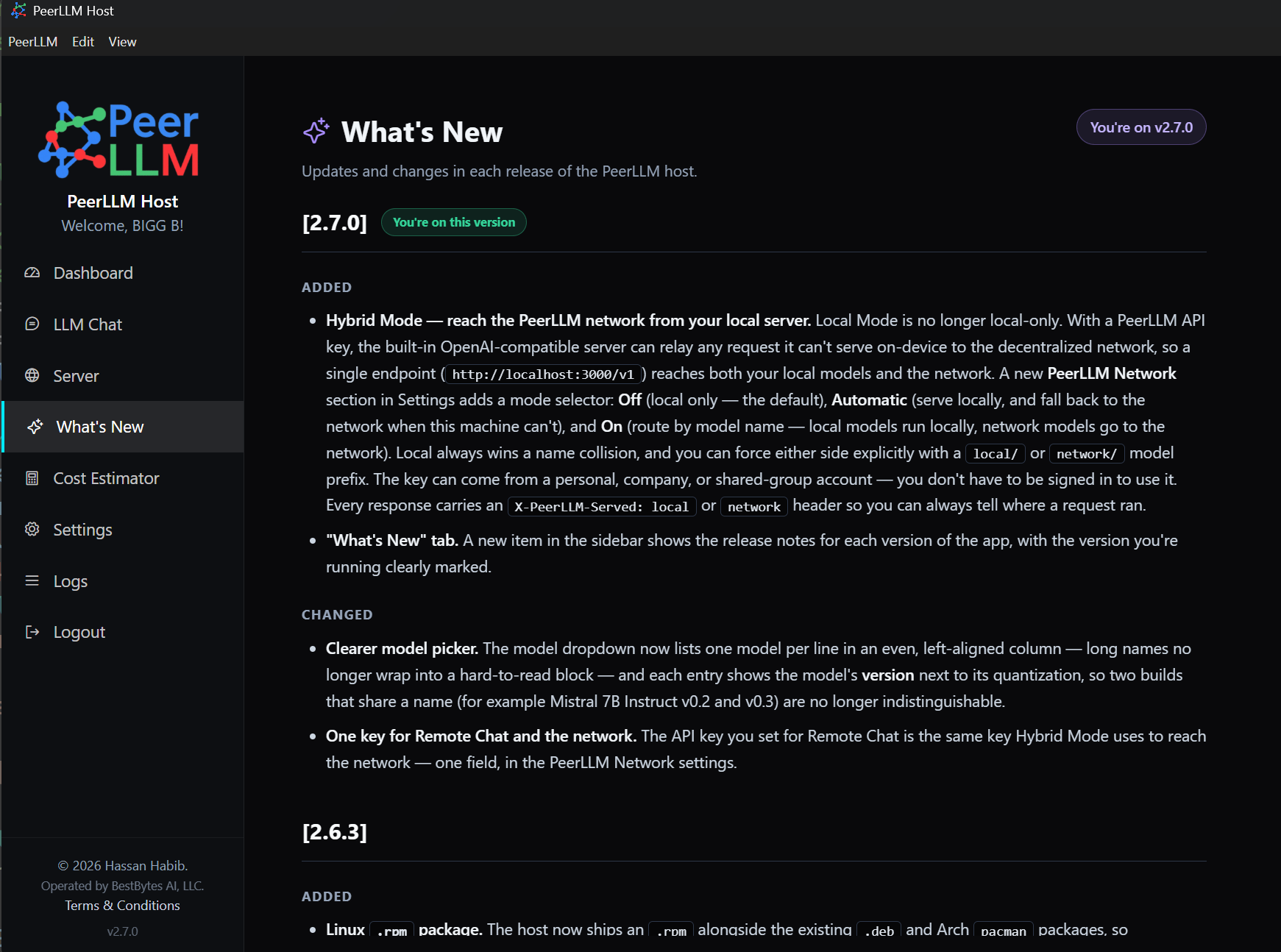
v2.7.0 also adds a small thing I’ve wanted for a while: a What’s New tab, right in the sidebar.
Every release, PeerLLM changes — features land, bugs get fixed, the app gets a little better. Until now, the only way to know what changed was to go looking. Now the release notes live inside the app itself, with the version you’re running clearly marked, so you can always see exactly what’s new in the version in front of you. The CLI has the same thing: peerllm-host changelog prints the notes for any release right in your terminal. Software should tell you what it did; now PeerLLM does.
Also in This Release
Alongside Hybrid Mode, v2.7.0 rolls up a few more improvements.
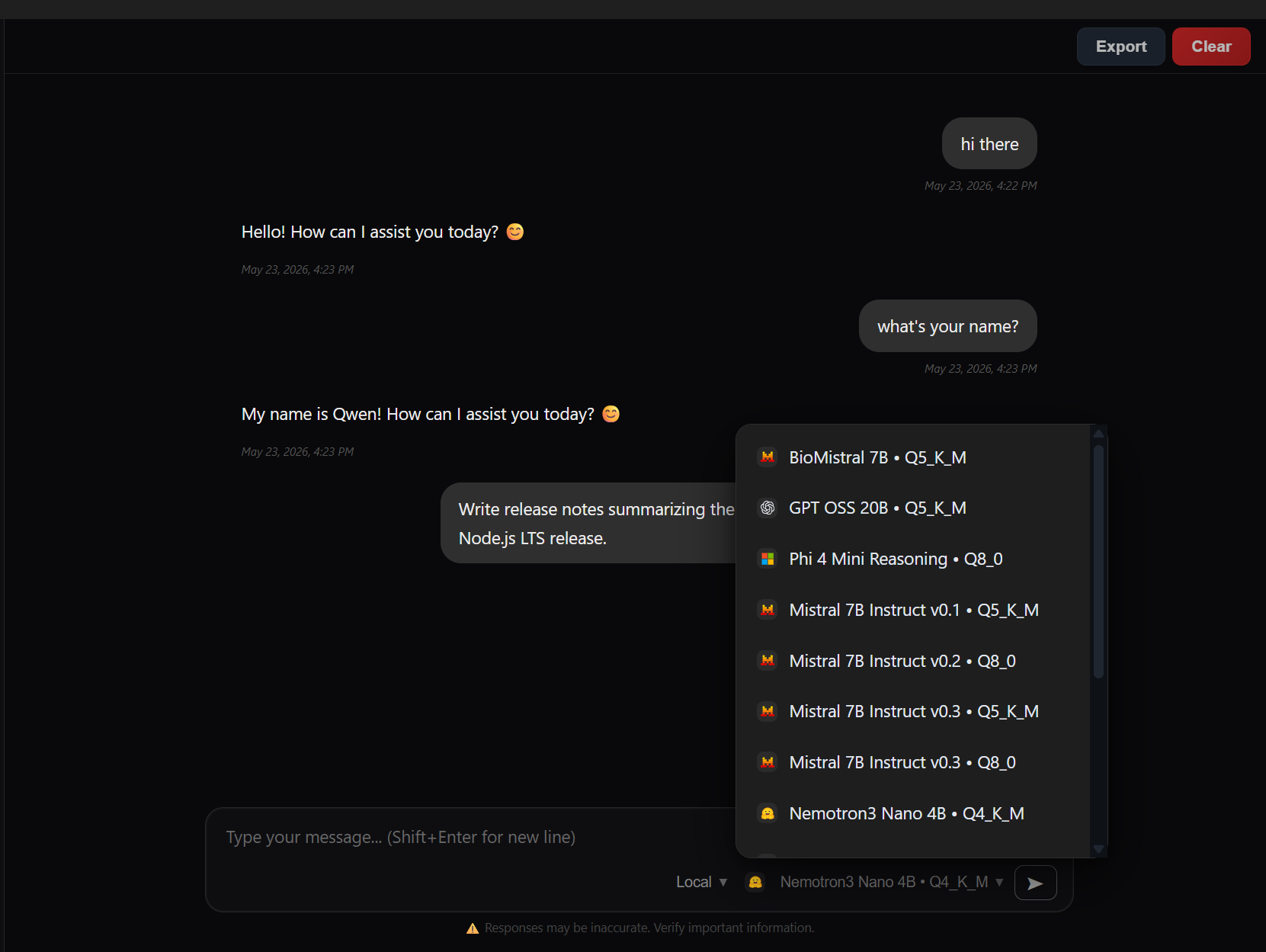
- A clearer model picker. The model dropdown now lists one model per line in an even, left-aligned column — long names no longer wrap into a hard-to-read block — and each entry shows the model’s version next to its quantization, so two builds that share a name (say, Mistral 7B Instruct v0.2 and v0.3) are no longer indistinguishable.
- A Linux
.rpmpackage. The host now ships an.rpmalongside the existing.deband Archpacmanpackages, so Fedora and RHEL-family distributions can install it directly. - Authenticated host connections. Hosts on the network now prove ownership of their connection with your account’s signed token, verified once when they connect. It’s a non-breaking security hardening — existing hosts keep working — that closes the door on anyone impersonating a host.
Why This Release Matters
PeerLLM has always been about giving people a real stake in AI instead of leaving intelligence and infrastructure in a few centralized hands. v2.6.0 said you can run AI privately, on your own machine, owing nobody anything. v2.7.0 says something that completes the thought: and when your own machine isn’t enough, you can reach a decentralized network of other people’s machines — on your terms, with your key, with your hardware always trying first.
That ordering is the whole point. The default is local. The network is a choice you make, not a default you have to escape. Your work stays on your machine unless you decide otherwise, and even then only for what you couldn’t do yourself. This is how compute should scale for a person: start with what you own, reach out only when you choose, and always know exactly where your work ran.
Local by default. Decentralized on your terms. That’s PeerLLM v2.7.0.
Download PeerLLM today from the download section at hosts.peerllm.com.
~ Hassan