PeerLLM v0.12.1 — Private Network Hosting for a People-Owned AI Future
Today I’m releasing PeerLLM v0.12.1, and this version unlocks something deeply important:
Private network Host access.
With this release, you can run a PeerLLM Host on one machine and securely connect to it from other devices on the same network. No public internet exposure required. No cloud dependency. Just your machines, your network, and your intelligence.
This means you can now integrate PeerLLM with tools like VS Code, IntelliJ, or any OpenAI-compatible client — all privately, inside your own environment.
Why This Matters (The Bigger Purpose)
I see a future where intelligence is as fundamental as electricity and water.
Homes will run on intelligence. Devices will coordinate intelligently. Robots will farm, clean, and build. Households will depend on AI the same way they depend on plumbing or power.
But here’s the key:
That intelligence must be owned by people.
Not locked behind subscriptions. Not centralized in massive data centers. Not controlled by a small group of corporations.
PeerLLM exists to enable self-sufficiency — a future where individuals can leverage AI for their survival, evolution, and fulfillment, without requiring constant internet access or ongoing payments to distant providers.
Private network hosting is the foundation for that future.
What’s New in v0.12.1
Private Network Host Access
You can now expose your PeerLLM Host only within your local network and allow other devices to connect securely.
This enables:
- Local IDE integrations
- Multiple household devices using the same intelligence
- Air-gapped or offline-friendly AI setups
- Full privacy and local ownership
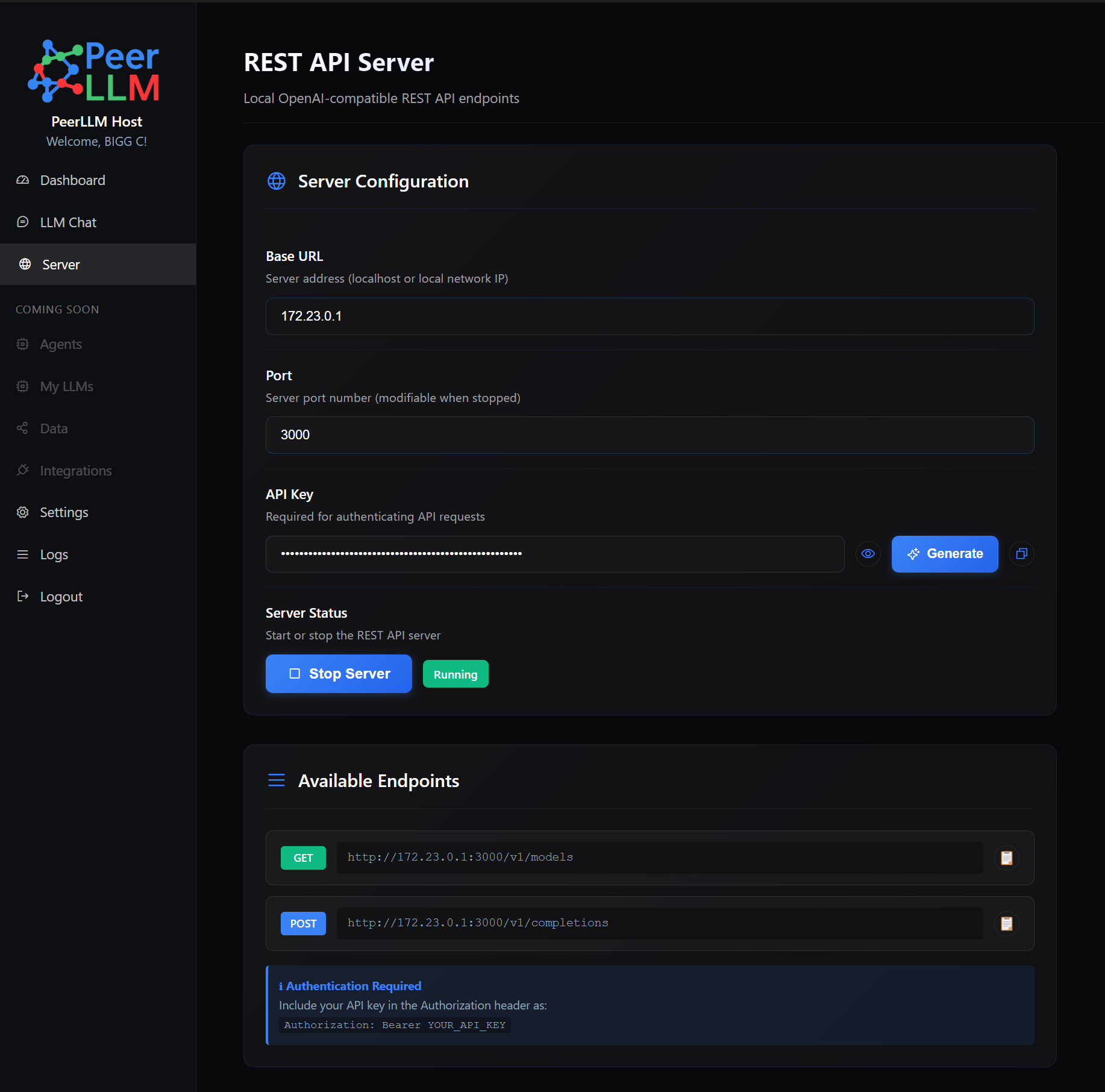
How to Enable Private Networking
- Open PeerLLM Host
- Navigate to Server from the left-hand menu
- You’ll see:
- Base URL / IP
This is the address other devices on your network will use to connect. - Port
Defaults to3000, but you can change it to whatever you want. - API Key
Required to secure your Host — even on a private network — to protect against potential network breaches.
- Base URL / IP
- Start or stop the server anytime
- Generate new API keys, hide/show keys, and manage access directly from the REST API Server page
OpenAI-Compatible API (Local & Private)
When the OpenAI-compatible server is enabled, PeerLLM exposes:
v1/models
Retrieve available local LLMsv1/completions
Chat with your models using standard OpenAI clients
This allows seamless integration with existing tools without modification.
Connecting with your local Host
Here’s a C# example to connect to your local Host:
using System.Text;
using Microsoft.SemanticKernel;
using Microsoft.SemanticKernel.ChatCompletion;

namespace PeerLLM.Demoes.SemanticKernel
{
    internal class Program
    {
        static async Task Main(string[] args)
        {
            var builder = Kernel.CreateBuilder();

            builder.AddOpenAIChatCompletion(
                modelId: "mistral-7b-instruct-v0.1.Q8_0",
                apiKey: "API_KEY_HERE",
                endpoint: new Uri("http://LOCAL_HOST_IP_HERE:3000/v1"));

            var kernel = builder.Build();
            var chat = kernel.GetRequiredService<IChatCompletionService>();
            var chatHistory = new ChatHistory();
            var fullResponse = new StringBuilder();

            chatHistory.AddUserMessage("Hey what is the capital of France?");

            await foreach (var message in chat.GetStreamingChatMessageContentsAsync(
                chatHistory,
                kernel: kernel))
            {
                Console.Write(message.ToString());
                fullResponse.Append(message.ToString());
            }
        }
    }
}
here’s another example in Python:
from openai import OpenAI

client = OpenAI(
    api_key="YOUR_AP_KEY",
    base_url="http://YOUR_HOST_IP:3000/v1"
)

response = client.chat.completions.create(
    model="mistral-7b-instruct-v0.1.Q5_K_M",  # or any model your server exposes
    messages=[
        {"role": "system", "content": "You are a helpful assistant."},
        {"role": "user", "content": "Explain transformers like I'm 10."}
    ],
    temperature=0.7
)

print(response.choices[0].message.content)
You can also use a plugin like Continue to connect your local Host to VS Code or Intellij-based IDE with a simple configuration like this:
name: PeerLLM Config
version: 1.0.0
schema: v1

models:
  - name: PeerLLM Mistral
    provider: openai
    model: mistral-7b-instruct-v0.1.Q8_0
    apiKey: "API_KEY_HERE"
    apiBase: "http://LOCAL_HOST_IP_HERE:3000/v1/"
What’s Coming Next
This is only the beginning.
Upcoming capabilities include:
- Voice generation
- Image generation
- Video generation
- Agents
- Data workflows
- And much more…
All running inside the same Host software, fully owned and controlled by you.
Visual Indicator
When private networking is enabled, you’ll see a badge next to your PeerLLM Network status, indicating that your local network access is active alongside (or independent from) the public PeerLLM network.

The Vision
Your compute.
Your network.
Your rules.
PeerLLM private networking enables a future where AI is:
- Decentralized
- People-owned
- Privacy-first
- Independent of massive centralized infrastructure
If this resonates with you, I invite you to build with me — towards a more free, human-centered, and decentralized future for intelligence.
Sign up to PeerLLM here today:
Register here
Enjoy PeerLLM v0.12.1 💖
Hassan Habib